One Missing Button, One Big UX Lesson
A missing deep-link button forced users into extra steps. Here's how we shipped a UX fix in 24 hours and removed that friction for good.
In this article
We tend to celebrate integrations when the sync works, the records match, and the data looks clean on the screen.
But users judge integrations by a harsher standard: can I move through my real workflow without stopping to think?
That difference is where a lot of “working” product experiences quietly fail.
This was one of those cases. We had built a task sync that pulled work items from ClickUp, Asana, and Monday into a time-tracking workflow. On paper, it looked complete. The integration connected. Task metadata came through. The UI was clean. The imported items were usable.
And yet one tiny missing action kept breaking the experience.
The Oops Moment
We nailed the import layer. Tasks from ClickUp, Asana, and Monday synced perfectly into our time-tracker. Beautiful UI. Clean data. Everything looked finished.
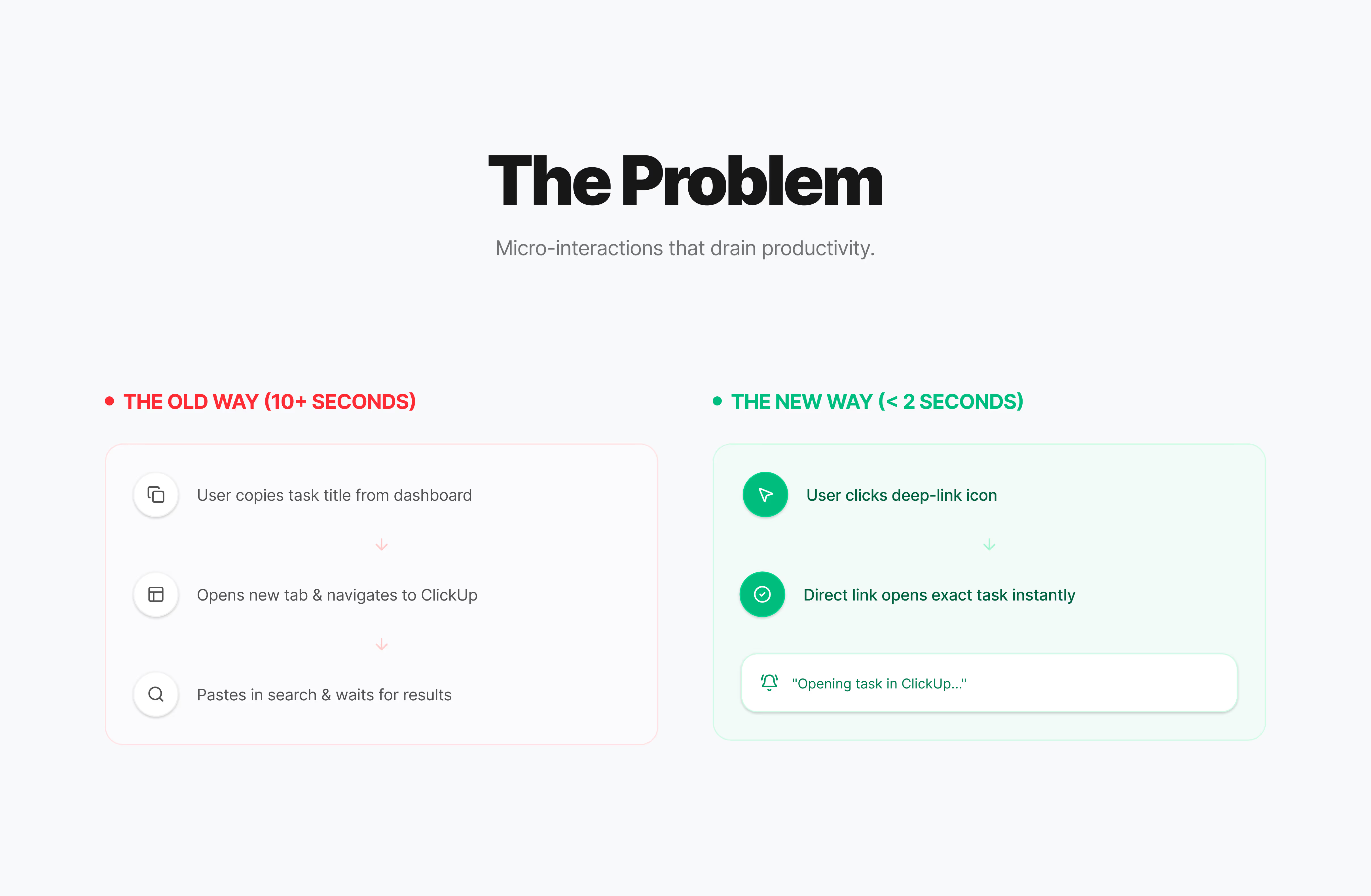
Except… users couldn’t get back to the original task.
“Wait, how do I open this in ClickUp?”
Turns out, we had built a one-way street. Users could bring tasks into our app, but they couldn’t jump back to the source system when they needed more context, wanted to update the original item, or needed to verify details before logging time.
So they started doing what users always do when software leaves a gap:
- Copy the task name
- Open the original platform in another tab
- Search manually
- Hope the naming matched closely enough to find the right item fast
That is not a catastrophic failure. It’s worse than that. It’s the kind of small repeated friction that people don’t always report formally, but they feel every day.
Every extra step told users the integration was technically connected but operationally incomplete.
Why This Small Gap Mattered More Than It Looked
This wasn’t just a missing convenience feature.
It affected three important parts of the product experience:
1. It slowed down a high-frequency workflow
Users didn’t need this action once a month. They needed it repeatedly while moving between tracking, planning, and execution. When a workflow happens dozens of times a day, even a 10-second detour becomes expensive.
2. It broke trust in the integration
An integration feels strong when it preserves context. If users have to reconstruct the path back to the source tool themselves, the product starts feeling like a disconnected copy instead of a reliable workflow layer.
3. It created unnecessary cognitive load
People had to remember which platform the task came from, switch mental context, search again, and confirm they had opened the correct item. That’s a lot of cognitive work for something the interface already had all the data to do automatically.
How We Found the Real Issue
What made this bug interesting was that the feature itself looked “done.”
From the team’s perspective, the job was to sync tasks from third-party tools into the product. That part worked. But from the user’s perspective, the real job was broader:
“Help me move between planning work and tracking work without losing context.”
That was the actual use case.
Once you frame the problem correctly, the missing piece becomes obvious. The integration didn’t just need import capability. It needed a return path.
This is why product teams need to look beyond whether a feature technically functions and ask:
- What job is the user really trying to complete?
- Where does this screen sit inside their larger workflow?
- What surrounding actions will they predictably need next?
In this case, the answer was immediate. After viewing a synced task, users often wanted to inspect the original task thread, description, checklist, attachments, or comments in the source platform. We had all the source metadata already. We just weren’t exposing the right action.
This is the pattern I keep seeing in SaaS UX: the team solves the data problem, but not the flow problem.
The “How Did We Miss This?” Fix
We added a direct deep-link right in the task row. One click opens the task in the source platform.
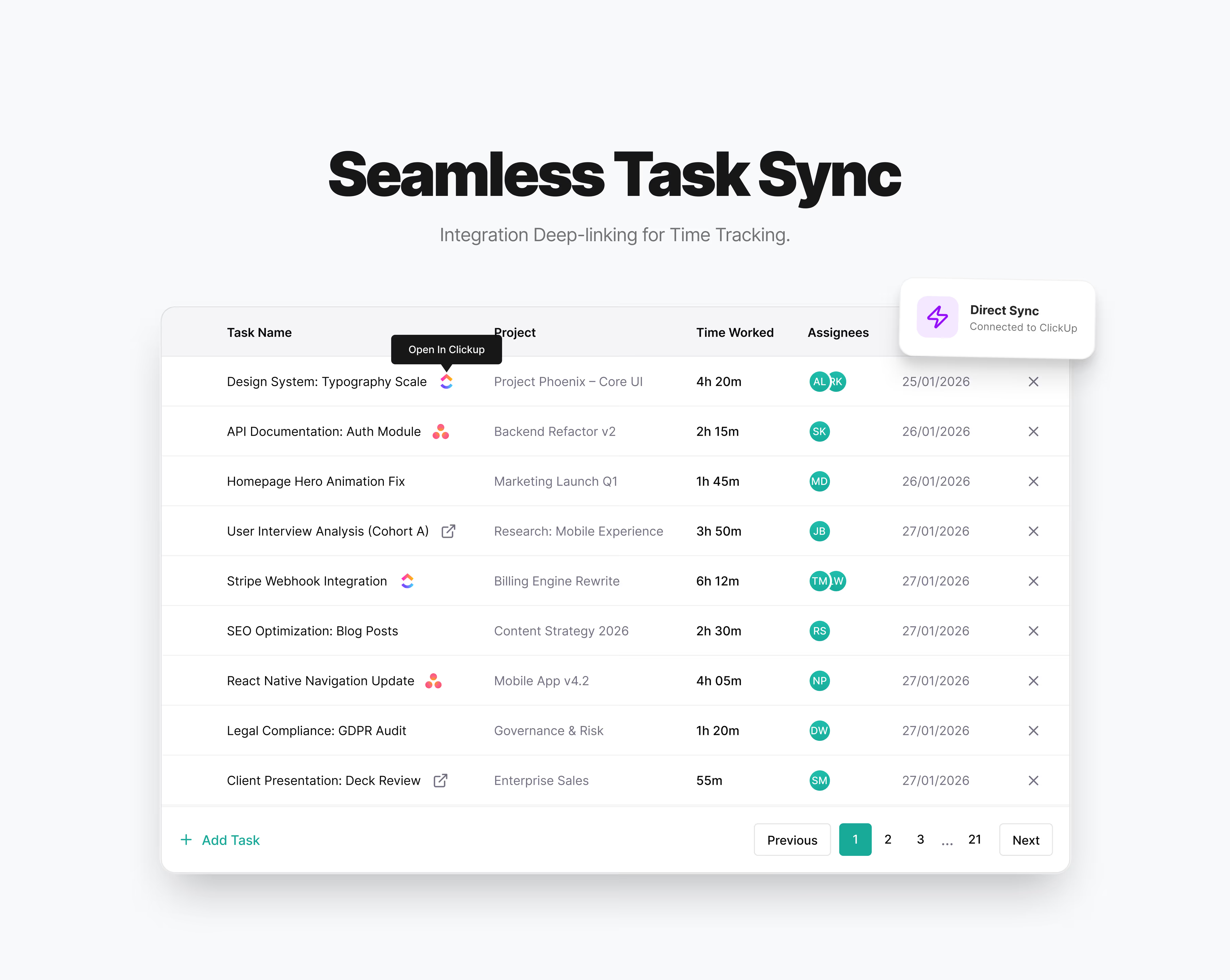
At a glance, that sounds almost too simple to deserve a case study. But the value was in where and how the action showed up.
Why the fix worked:
- Lives where users naturally look (next to the task name)
- Uses platform-specific visual cues for instant recognition
- Preserves context without forcing users into menus or secondary actions
- Cuts a repetitive 10+ second detour down to roughly 2 seconds
No overflow menu. No secondary panel. No hover-to-discover. The action sat right where users looked.
We put the action directly beside the thing users wanted to act on.
Good UX is often less about invention and more about respecting user intent at the moment it appears.
Why the Placement Was the Real Design Decision
The feature itself was obvious. The placement was the product decision.
There were a few options we could have chosen: put “Open in source” inside a right-click menu, add it to a task details drawer, place it in a generic actions column, or show it only after hover.
All of those would have technically solved the problem. None would have solved it as cleanly.
The better choice was to keep the action tightly coupled to the task identity itself. Users don’t think, “I want to perform a system action.” They think, “I want to open this task in ClickUp.”
That means the control belongs closest to the task name.
The visual treatment also mattered. The platform icon helped answer the question before users had to ask it:
- This opens externally
- This opens in the original source
- This is the same task, not another internal detail page
That reduced hesitation. Users didn’t need to inspect labels or trial-and-error the behavior.
A Better Rule for Integration UX
If your product syncs, mirrors, or references work from another system, ask these questions during design review:
- Can users get back to the source without searching manually?
- Can they tell which system an item came from at a glance?
- Are the most common next actions available where users already look?
- Does the integration preserve context, not just data?
- If this action repeated 20 times a day, would the current interaction still feel acceptable?
This checklist catches a surprising number of “almost finished” integrations before they ship.
Designed, Built, Shipped: 24 Hours
We scoped it in an afternoon, designed it in a single session, and shipped it the next morning. The reason it moved fast had nothing to do with urgency. The problem was just well-defined. When you know exactly what the user needs and the data is already there, the build becomes almost trivial.
What Changed After the Update
The immediate effect was not flashy, but it was strong.
- Support tickets about “finding my tasks” = gone
- Users started mentioning it unprompted: “Love that ClickUp button”
- NPS bump from integration users
- Team morale boost (sometimes the small wins hit different)
The deeper improvement was workflow continuity.
Users no longer had to treat the integration as a dead-end copy. They could move fluidly between systems, which made the synced task list feel more trustworthy and useful.
- Before: “Tasks are visible here.”
- After: “I can actually work from here.”
That shift is where product value becomes real.
The Bigger Product Lesson
The core mistake was easy to make because teams often scope integrations around data transfer: connect the API, sync the objects, map the fields, render the imported data. That part gets done.
Those are necessary questions. They are not sufficient.
The more important question is:
“What does the user need to do immediately before and after this interaction?”
That is where the real UX work lives.
For integrations especially, users almost never live entirely inside one product. Their work spans multiple tools, and they expect your product to support those transitions gracefully. If the handoff breaks, your product becomes friction even if every underlying API call works perfectly. The fastest way to catch this kind of friction early is watching real session recordings in Microsoft Clarity.
This is why “small” interaction gaps often have outsized impact. They sit on top of high-intent moments. Users have already decided what they want to do. If the interface fails to support that next step, the break is far more painful than a cosmetic bug elsewhere on the page.
The Real Takeaway
Your users don’t live in your app. They live in 12 apps.
When you integrate with other tools, you’re not replacing their workflow. You’re joining it.
Make the handoff seamless, or you become the friction.
The best integrations feel like extensions, not destinations. They don’t trap users. They help them move faster between systems while keeping context intact.
That is why this one missing button mattered so much. It wasn’t really about a button. It was about removing a break in the workflow that users felt every single time they needed to move from tracked work back to source work.
And in product, those tiny repeated breaks are often where adoption gets won or lost.